
WooCommerce
WooCommerce Order Confirmation
Order confirmation sends each new store order to the customer on WhatsApp with Confirm and Cancel buttons. When the customer taps a button, the order status in WooCommerce changes by itself. This cuts fake and forgotten cash-on-delivery orders before you ship them.
Before you start: you need the WooCommerce Integration add-on, an official WhatsApp number (WhatsApp Business API) connected in Instances, and your store connected with the RabtCRM plugin. If your store is not connected yet, follow steps 1–3 of WooCommerce AI Sales Agent.
Step 1 — Turn on order confirmation
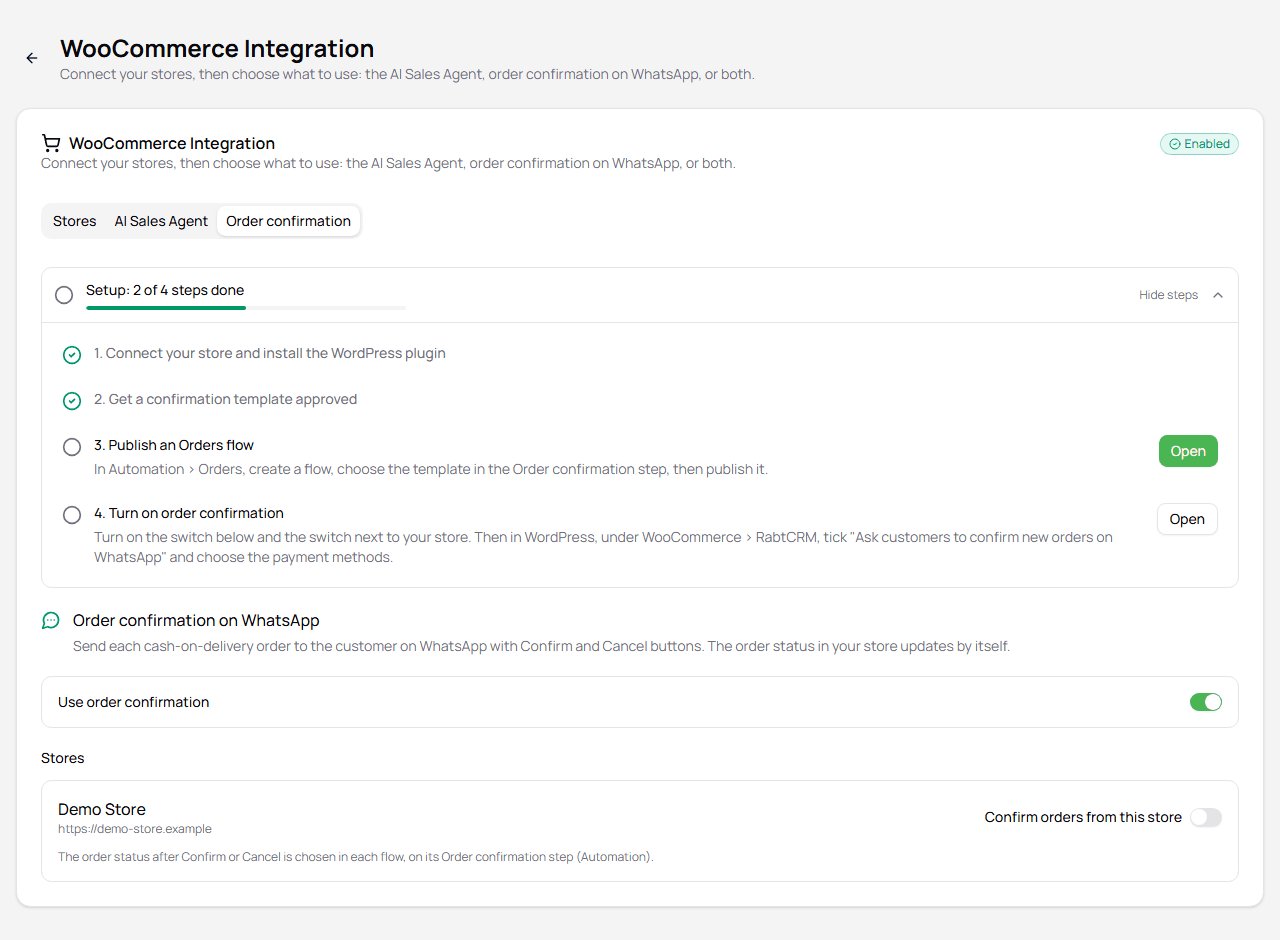
From the sidebar, open Add-ons > WooCommerce Integration, then the Order confirmation tab.
- Turn on Use order confirmation.
- Under Stores, turn on Confirm orders from this store for each store.
The checklist at the top shows what is left. Click Open next to a step to go straight to it.
Step 2 — Choose which orders wait for confirmation (WordPress)
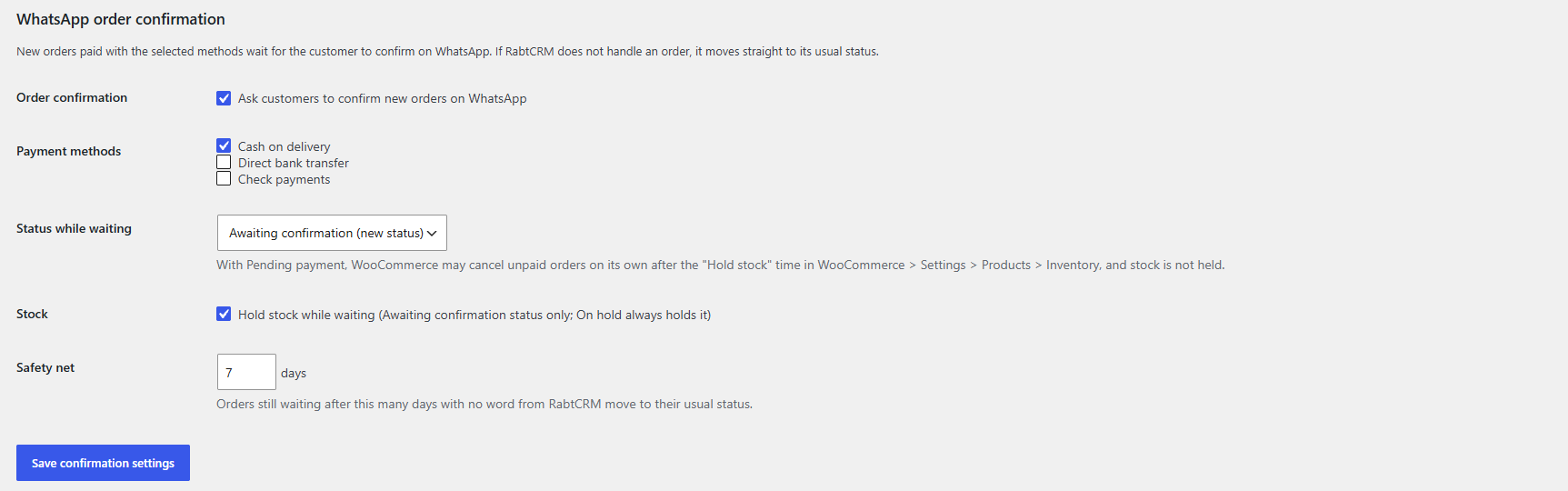
In WordPress, open WooCommerce > RabtCRM and find WhatsApp order confirmation:
| Setting | What it does |
|---|---|
| Order confirmation | Tick Ask customers to confirm new orders on WhatsApp |
| Payment methods | Only orders paid with these methods wait for confirmation. Usually Cash on delivery |
| Status while waiting | The status an order keeps until the customer answers. Awaiting confirmation is recommended |
| Stock | Tick Hold stock while waiting to keep the items reserved (Awaiting confirmation status only) |
| Safety net | If RabtCRM sends no answer within this many days, the order moves to its usual status |
Click Save confirmation settings.
Step 3 — Create the confirmation template
From the sidebar, open Templates and create a template on your official number:
- Category: Utility
- Body: the message, with variables for the order details. For example: Hello
{{1}}, please confirm your order #{{2}}for{{3}}. - Buttons: two quick reply buttons, for example Confirm and Cancel
Wait until Meta approves it. For tips that help approval, read Template Guidelines.
Variables in the header or in a link button are not supported for order confirmation. Keep the variables in the body.
Step 4 — Build the Orders flow
From the sidebar, open Automation, click New Automation and choose Orders. Type a name, choose your WhatsApp number, and click Create.
The flow starts with two steps:
Order received chooses which orders start the flow: the stores, the payment methods, and optionally an order total range and billing countries.
Order confirmation sends the template and waits for the answer:
| Setting | What to choose |
|---|---|
| Template | Your approved confirmation template |
| Template variables | The order detail for each variable, for example {{1}} = Customer name, {{2}} = Order number, {{3}} = Order total |
| Button roles | Give the Confirm button the Confirm role and the Cancel button the Cancel role |
| Wait for a reply | How long to wait before taking the No reply path |
| When the customer confirms / cancels | The new order status, for example Processing and Cancelled |
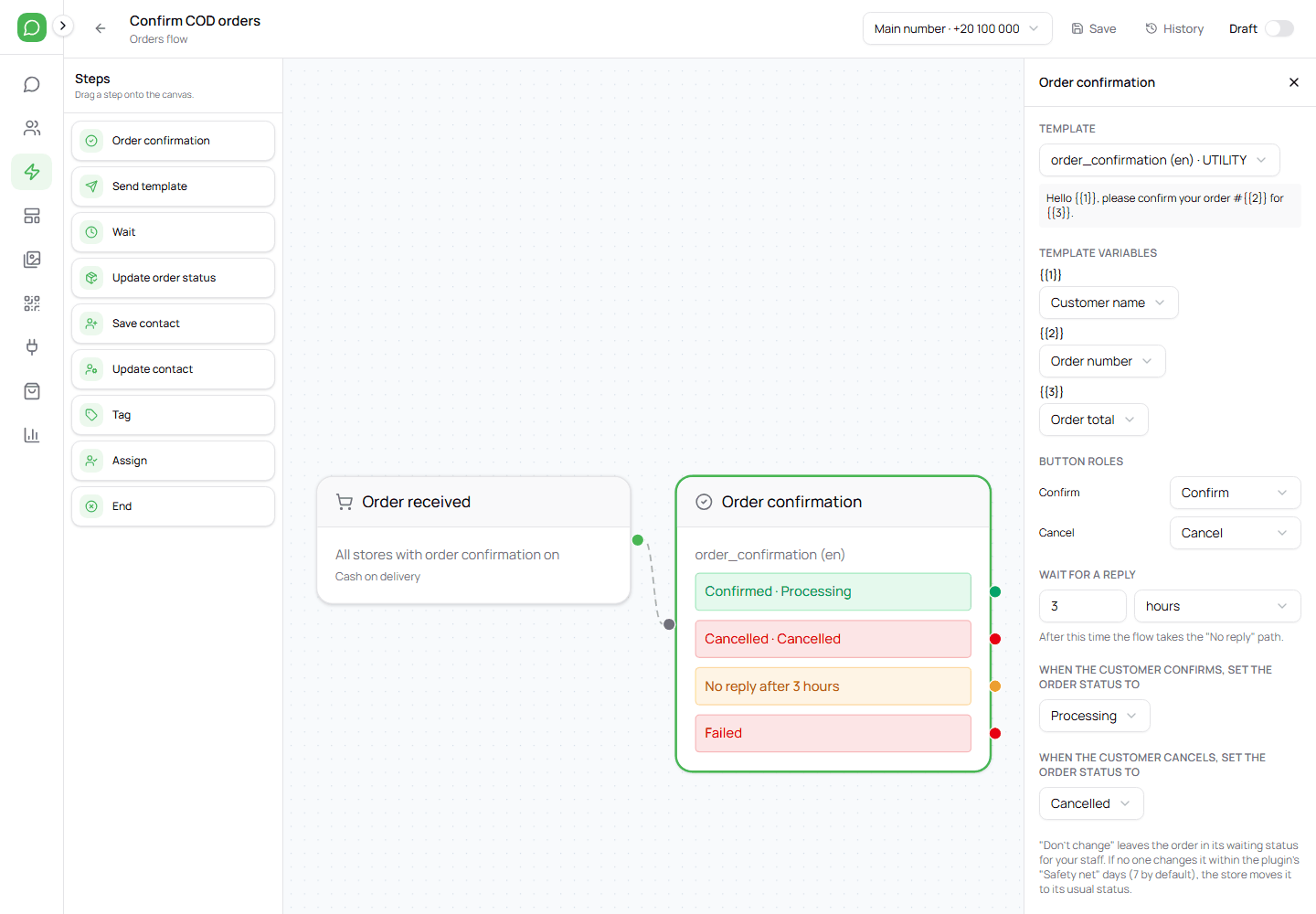
The step has four paths: Confirmed, Cancelled, No reply and Failed. A third button with the Other path role gets a path of its own. You can connect more steps to them, for example Send template to remind a customer who did not reply, Wait, or Update order status.
When the flow is ready, click Save, then turn on the switch next to Draft to make it Live. After you edit a live flow, click Publish changes.
What happens with each order
- A customer places an order on your store.
- The order waits in the status you chose (for example Awaiting confirmation), and the customer gets your template on WhatsApp.
- The customer taps Confirm or Cancel. The order status changes by itself, with a note on the order.
- No reply? The flow takes the No reply path. If nobody changes the order, the Safety net in WordPress moves it to its usual status.
You can follow every order and its confirmation in Orders in RabtCRM.
Troubleshooting
| Problem | What to do |
|---|---|
| Orders do not wait for confirmation | Check Ask customers to confirm new orders on WhatsApp and the payment methods in WordPress |
| No WhatsApp message is sent | Check that the flow is Live, the store switch is on, and the template is approved |
| The template is not in the list | Only approved templates on the flow's WhatsApp number appear |
| You cannot make the flow live | Fix the problems the builder lists, for example a variable with no field |