
Getting Started
Connecting WhatsApp
To send and receive WhatsApp messages through the platform, you first need to add a WhatsApp connection (called an Instance). Each instance represents one WhatsApp number linked to RabtCRM.
Step 1 — Open the Instances Page
Click Instances in the left sidebar.
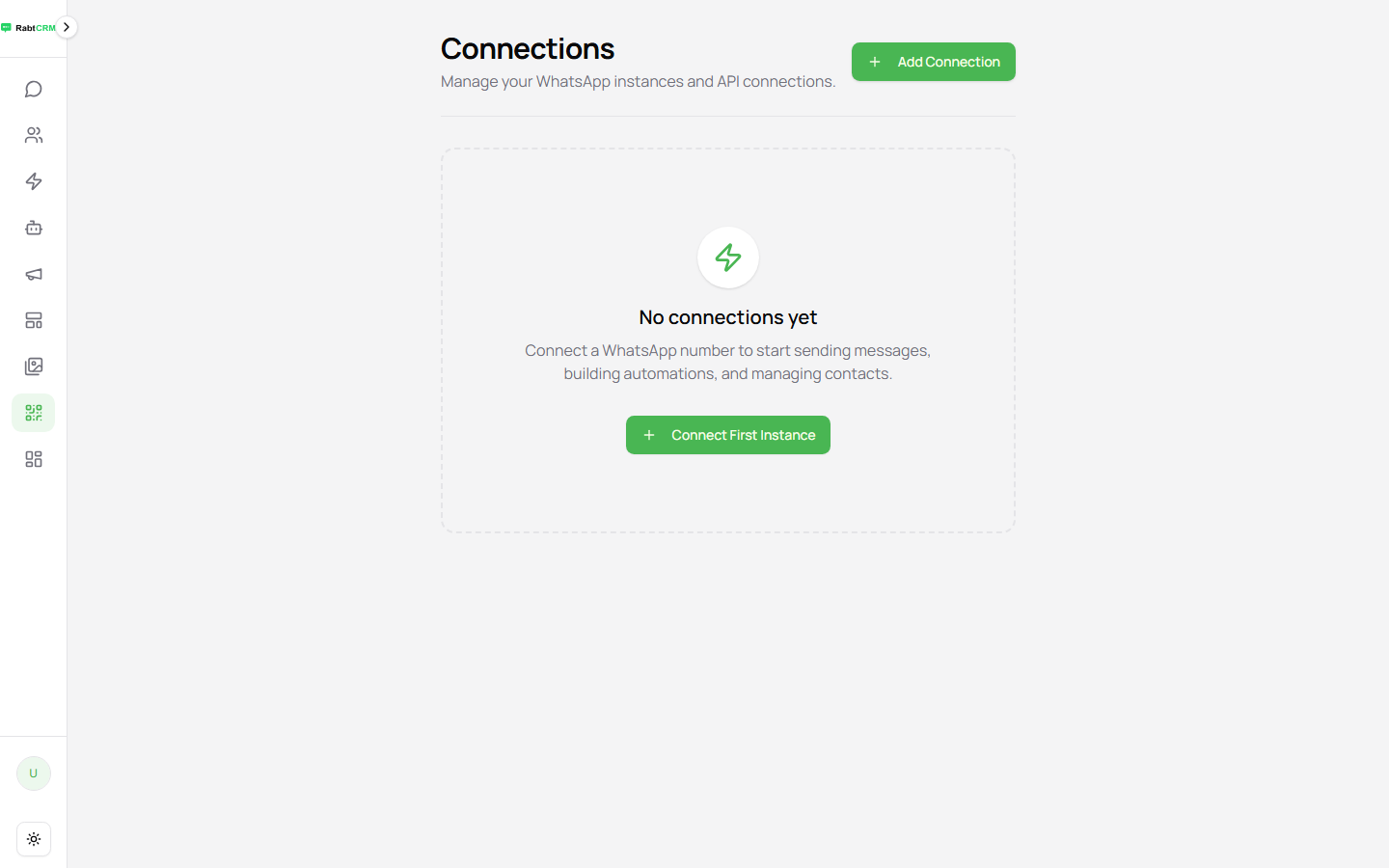
You'll see all existing connections. If this is your first time, the list will be empty.
Step 2 — Add a New Instance
Click Add Connection at the top of the page.
In the dialog:
- Enter an instance name — something descriptive like "Customer Support" or "Sales"
- Click Create
Step 3 — Scan the QR Code
After creation, a QR code screen appears.
On your phone:
- Open WhatsApp
- Tap the three dots ⋮ (top right)
- Select Linked Devices
- Tap Link a Device
- Scan the QR code shown on the platform
Note: The QR code refreshes every 30 seconds. If it expires before you scan, click the refresh button for a new one.
Step 4 — Confirm the Connection
After a successful scan, the instance status changes from 🔴 to 🟢 Connected.
| Status | Meaning |
|---|---|
| 🟢 Connected | Active — receiving messages |
| 🔴 Disconnected | Link broken — re-scan required |
| 🟡 Connecting | Platform is attempting to connect |
Step 5 — Instance Settings
After linking, click the instance to edit its settings:
- Display name — how the instance appears in the sidebar
- Behaviour preferences — reject calls, ignore groups, always online, read messages automatically
- Delete instance — unlinks the number
FAQ
Can I connect more than one number? Yes, you can add multiple instances depending on your subscription plan.
Does linking affect my personal WhatsApp? No. This uses WhatsApp's Linked Devices feature — the same technology as WhatsApp Web. Your phone continues to work normally.
What do I do if the connection drops? Re-scan the QR code from the Instances page.