
CRM & Contacts
Tags & Funnels
Tags let you classify contacts into groups. The Sales Funnel lets you track where each customer is in their buying journey.
Tags
What Is a Tag?
A tag is a label you attach to a contact to organise them. Examples:
VIP— high-value customersLead— contacts who showed interestSupport— customers who opened a support ticket
Adding a Tag to a Contact
- Go to Contacts
- Click a contact's name to open their profile
- In the tags section, type the tag name and press Enter
- You can add multiple tags to the same contact
Filtering by Tag
From the Contacts page, click All Tags to filter contacts by a specific tag.
Using Tags in Automation
Tags can be used as conditions in automation flows:
- Add a tag automatically when a specific message is received
- Remove a tag after a deal is closed
- Branch the flow based on whether a tag is present
Sales Funnel
What Is the Sales Funnel?
The funnel is a visual kanban board of your sales pipeline, found on the Dashboard page.
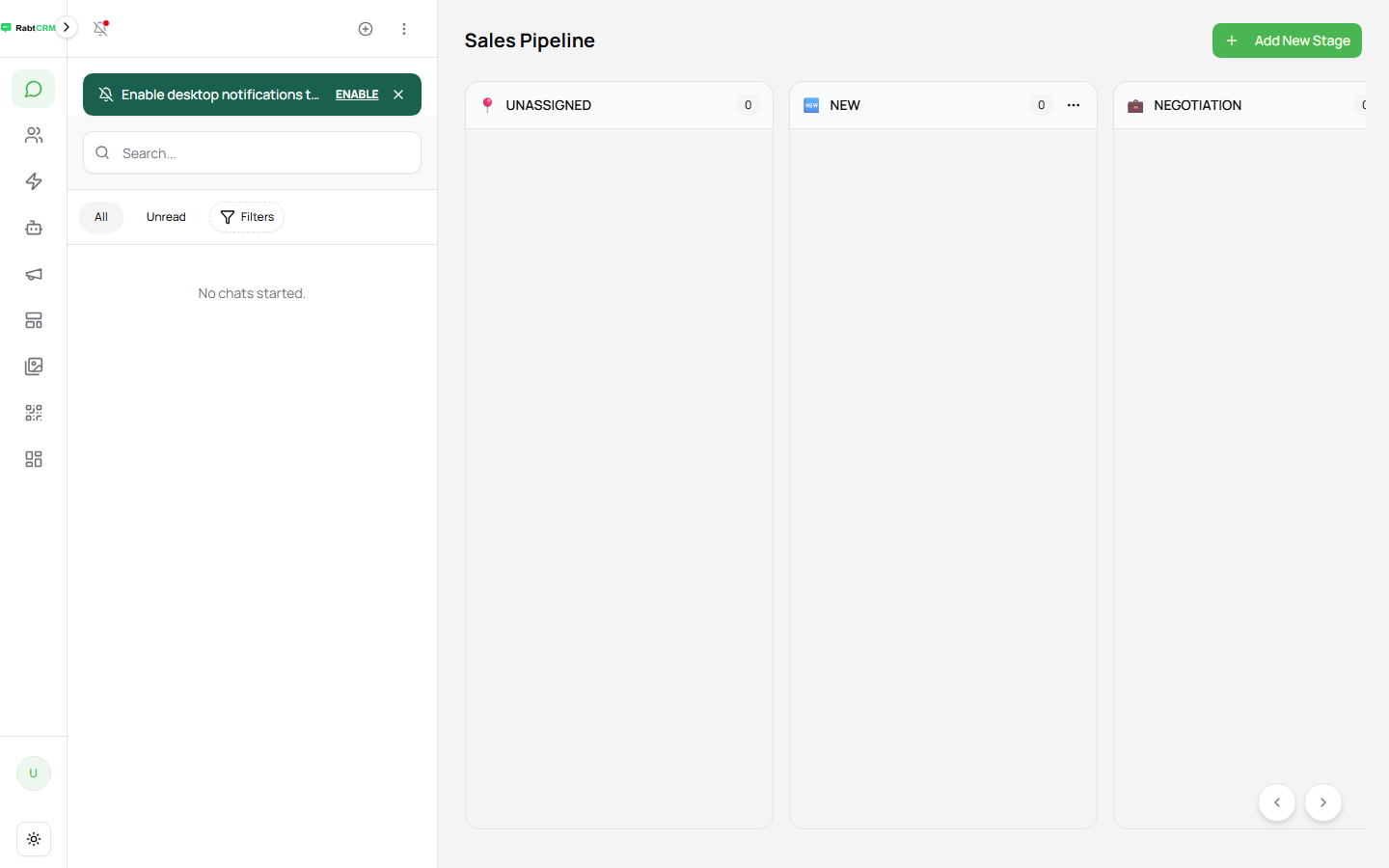
Each customer sits in one stage at a time. Drag and drop cards between columns as deals progress.
Default Funnel Stages
| Stage | Meaning |
|---|---|
| Unassigned | Not yet categorised |
| NEW | Fresh lead |
| NEGOTIATION | In discussion |
| WON | Deal closed |
| LOST | Deal lost |
Adding a Custom Stage
From the Dashboard funnel view, click Add New Stage to create a custom stage with a name and colour.
Moving a Customer Between Stages
- Drag the customer card and drop it in the target column
- Or open the customer's profile and manually change their stage
Using Tags and Funnels Together
| Use case | Right tool |
|---|---|
| Classify contacts (VIP, region, type) | Tags |
| Track sales progress | Funnel |
| Target a group in a campaign | Tags |
| Analyse sales performance | Funnel |
Tips
- Use tags for fixed attributes (VIP, country, customer type)
- Use the funnel for dynamic state (where is this customer in the buying journey right now?)
- Filter contacts by stage using the All Stages button on the Contacts page