
WooCommerce
WooCommerce AI Sales Agent
The AI Sales Agent lets your AI agent sell from your WooCommerce store on WhatsApp. It searches your real products, checks stock and variations, gets a live shipping quote for the customer's address, and creates the order after the customer approves the summary.
Before you start: you need the WooCommerce Integration add-on (Add-ons in the sidebar), a WordPress site with WooCommerce, and an AI agent. New to AI agents? Read Creating an AI Agent first.
Step 1 — Connect your store
From the sidebar, open Add-ons, then open WooCommerce Integration. On the Stores tab:
- Click Download the WordPress plugin to get the plugin file (a
.zip). - Type your Store URL (for example
https://mystore.com) and a Connection name. - Click Connect & get key. RabtCRM shows a connection key once. Copy it now.
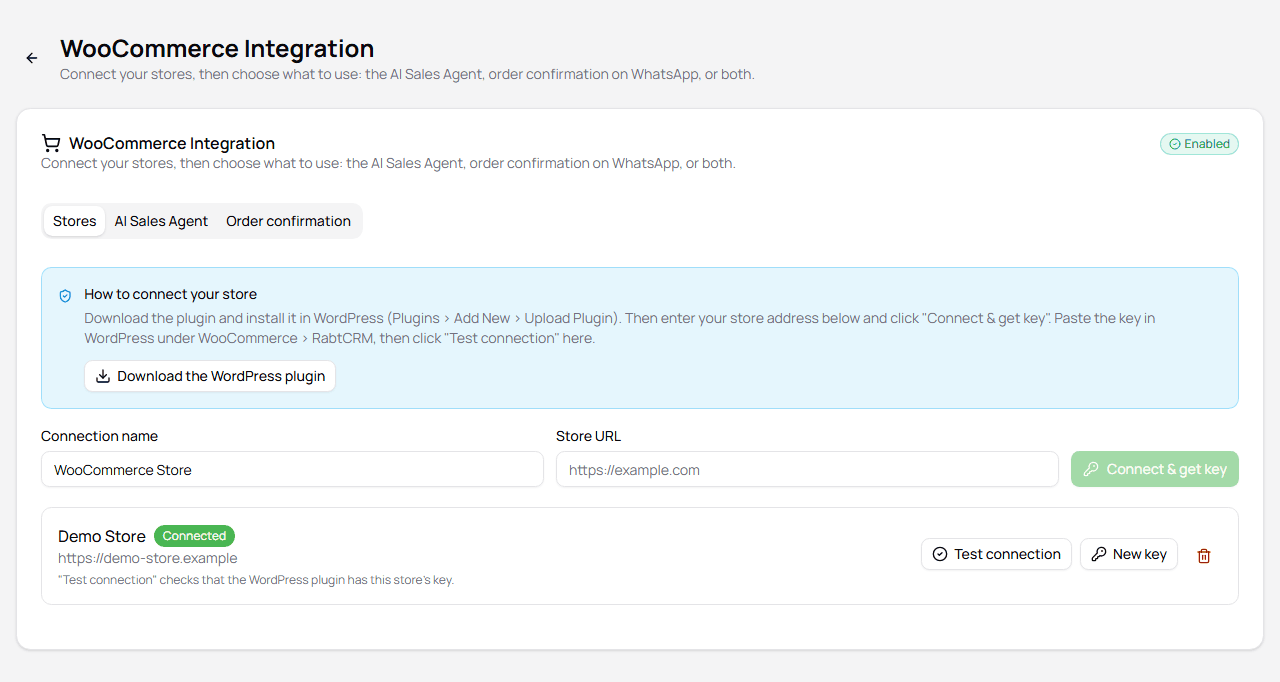
If you lose the key, click New key next to the store. The store stops working with RabtCRM until you paste the new key in WordPress.
Step 2 — Install the plugin in WordPress
In your WordPress admin, open Plugins > Add New > Upload Plugin. Choose the .zip file you downloaded, click Install Now, then Activate.

Step 3 — Paste the key
In WordPress, open WooCommerce > RabtCRM. Paste the key in Connection key and click Save connection.

Back in RabtCRM, click Test connection next to the store. The badge turns Connected when the plugin answers.
Step 4 — Turn on the AI Sales Agent
Open the AI Sales Agent tab and turn on Use the AI Sales Agent.
At the top of the tab, a checklist shows which steps are done. Click Open next to a step to go straight to it. When every step is done, the checklist folds into one line.
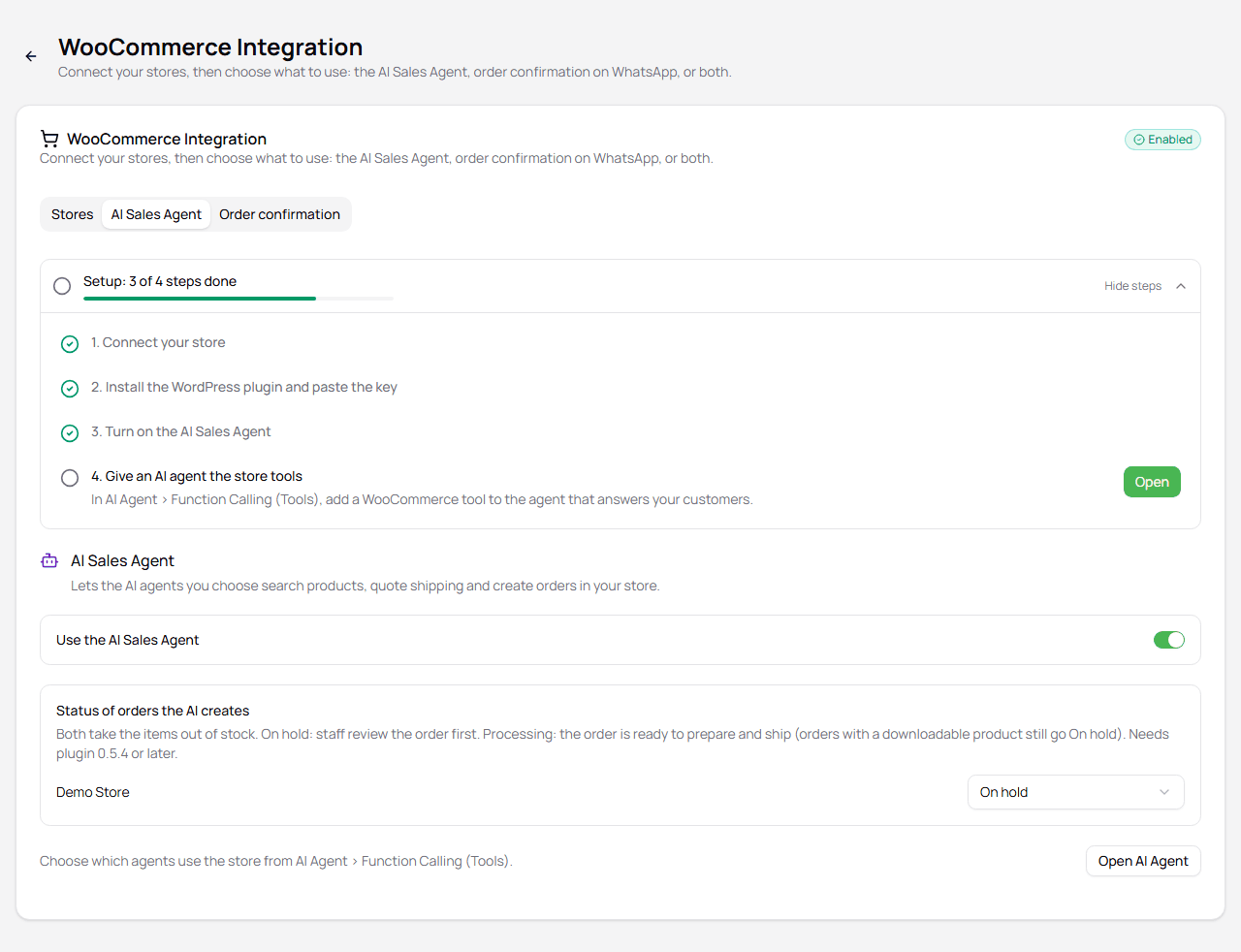
Status of orders the AI creates decides what happens after an order is created. You choose it for each store:
| Status | When to use it |
|---|---|
| On hold | Your staff review each order first |
| Processing | The order is ready to prepare and ship straight away |
Both take the items out of stock. An order with a downloadable product always goes On hold. Processing needs plugin 0.5.4 or later.
Step 5 — Give your AI agent the store tools
Open AI Agent from the sidebar, open the agent that answers your customers, and go to the Function Calling (Tools) tab.
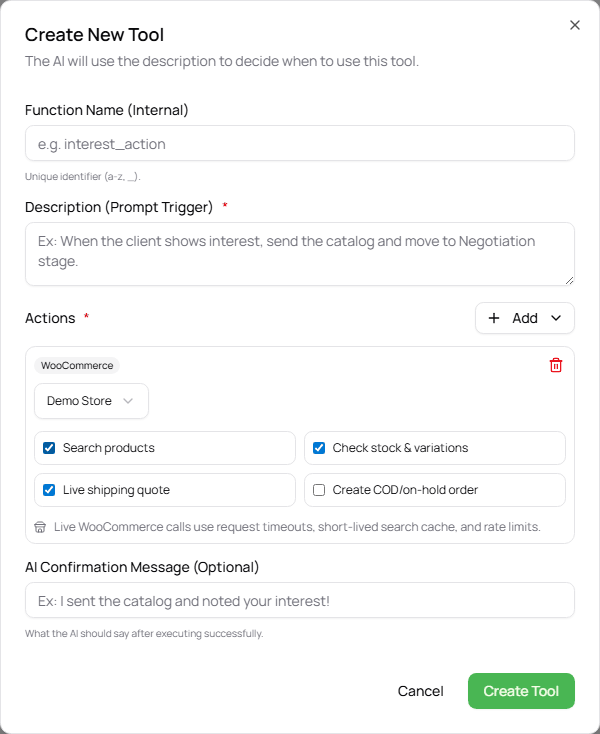
- Click New Tool.
- Give it a Function Name (for example
store_sales) and a Description, for example: Use this to find products, check prices and stock, quote shipping, and place orders. - Under Actions, click Add and choose WooCommerce.
- Choose your store, and tick what the agent may do: Search products, Check stock & variations, Live shipping quote, and Create COD/on-hold order.
- Click Create Tool.
Safe by design: the agent never invents prices, stock or shipping. It only uses your store's answers, and it creates an order only after the customer approves the exact summary.
How it works for your customer
- The customer asks about a product on WhatsApp.
- The agent searches your store and answers with real prices and stock.
- It asks for the phone, address and quantity, then gets a live shipping quote.
- It shows the order summary. After the customer approves, it creates the order in WooCommerce.
You see every order in WooCommerce, and in Orders in RabtCRM.
Troubleshooting
| Problem | What to do |
|---|---|
| Test connection fails | Check the store URL, and paste the key again in WooCommerce > RabtCRM |
| The agent does not use the store | Check that Use the AI Sales Agent is on and that the agent has a WooCommerce tool |
| You lost the key | Click New key, then paste the new key in WordPress |
Want customers to confirm their orders on WhatsApp too? See WooCommerce Order Confirmation.