
CRM & Contacts
Filtering Leads
The filter tools on the Contacts page let you find exactly who you're looking for — whether you have hundreds or thousands of contacts.
Quick Search
At the top of the Contacts page, there's a search bar.
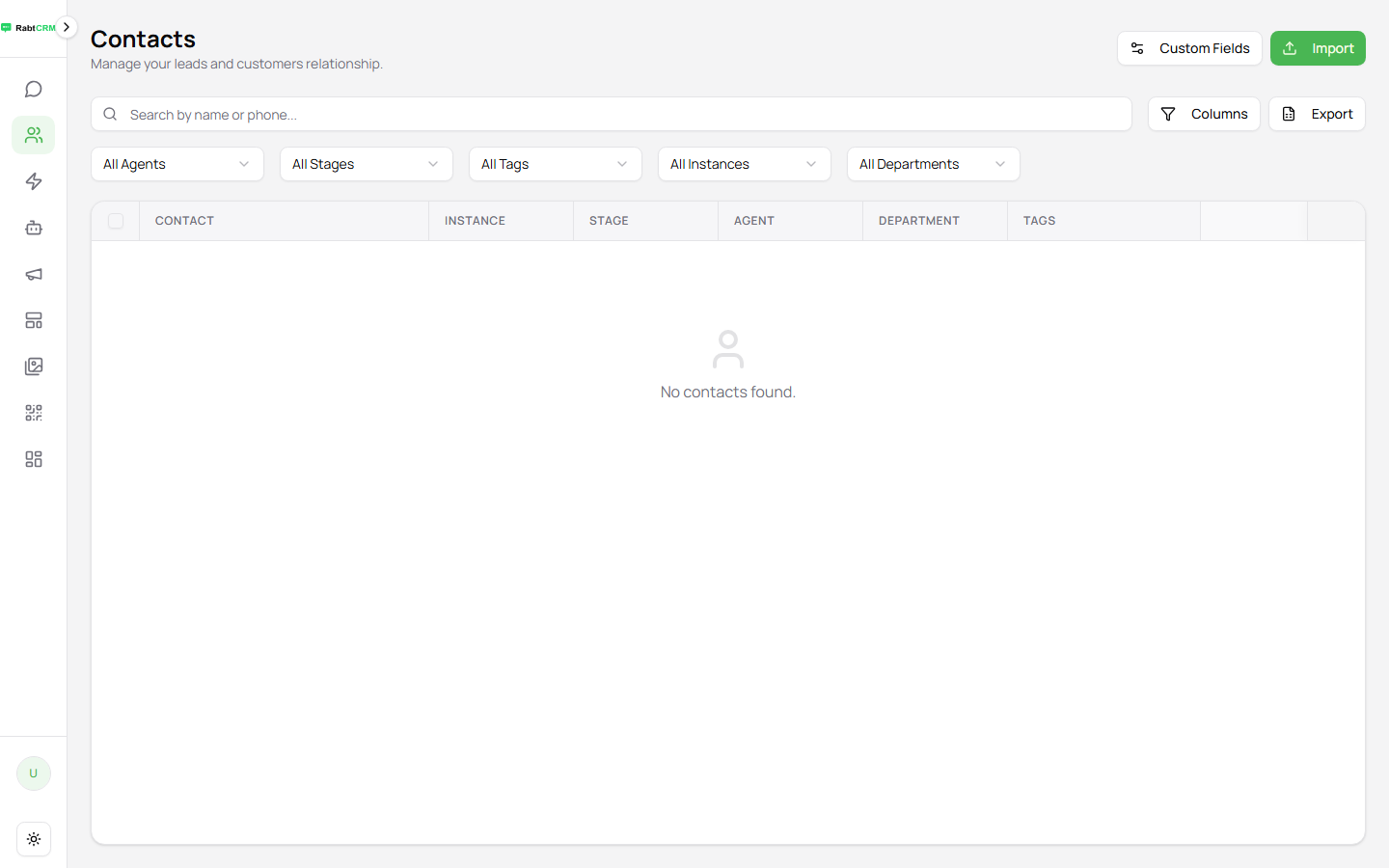
Search by:
- Contact name — full name or partial
- Phone number — or partial number
- Email address
Filter Buttons
The Contacts page has quick-filter buttons at the top:
| Button | What It Does |
|---|---|
| All Agents | Filter by the agent assigned to the conversation |
| All Stages | Filter by sales funnel stage |
| All Tags | Filter by tag |
| All Instances | Filter by the WhatsApp number used |
| All Departments | Filter by department |
Click any button and select a value to apply the filter instantly.
Filtering by Stage
Want to see all contacts in the "Negotiation" stage?
- Click All Stages
- Select the stage (NEW, NEGOTIATION, WON, LOST…)
- The list updates immediately
Filtering by Tag
- Click All Tags
- Select the tag (VIP, Lead…)
- Only contacts with that tag appear
Bulk Actions
After filtering, select multiple contacts at once:
- Check the boxes next to contacts you want
- Bulk action options appear
- Choose an action:
- Add Tag — applies a tag to all selected contacts
- Change Stage — moves them to a funnel stage
- Add to Campaign — adds them to a broadcast campaign
Exporting Contacts
After filtering, click Export to download the visible contact list as an Excel file.
Practical Example: Target Inactive Customers
Want to re-engage customers who haven't replied in 3 months?
- Click All Tags → select
inactive(or use All Stages for a stage-based filter) - Select all
- Click Add to Campaign → select your re-engagement campaign