
CRM & Contacts
Campaigns & Mass Messaging
Campaigns let you send an approved WhatsApp template to a list of numbers uploaded from an Excel file. This guide covers the full flow, from creating the campaign to watching it complete.
Before you start: campaigns send templates, and templates must be approved by Meta first. If you have no approved template yet, read Template Guidelines first.
Step 1 — Create the Campaign
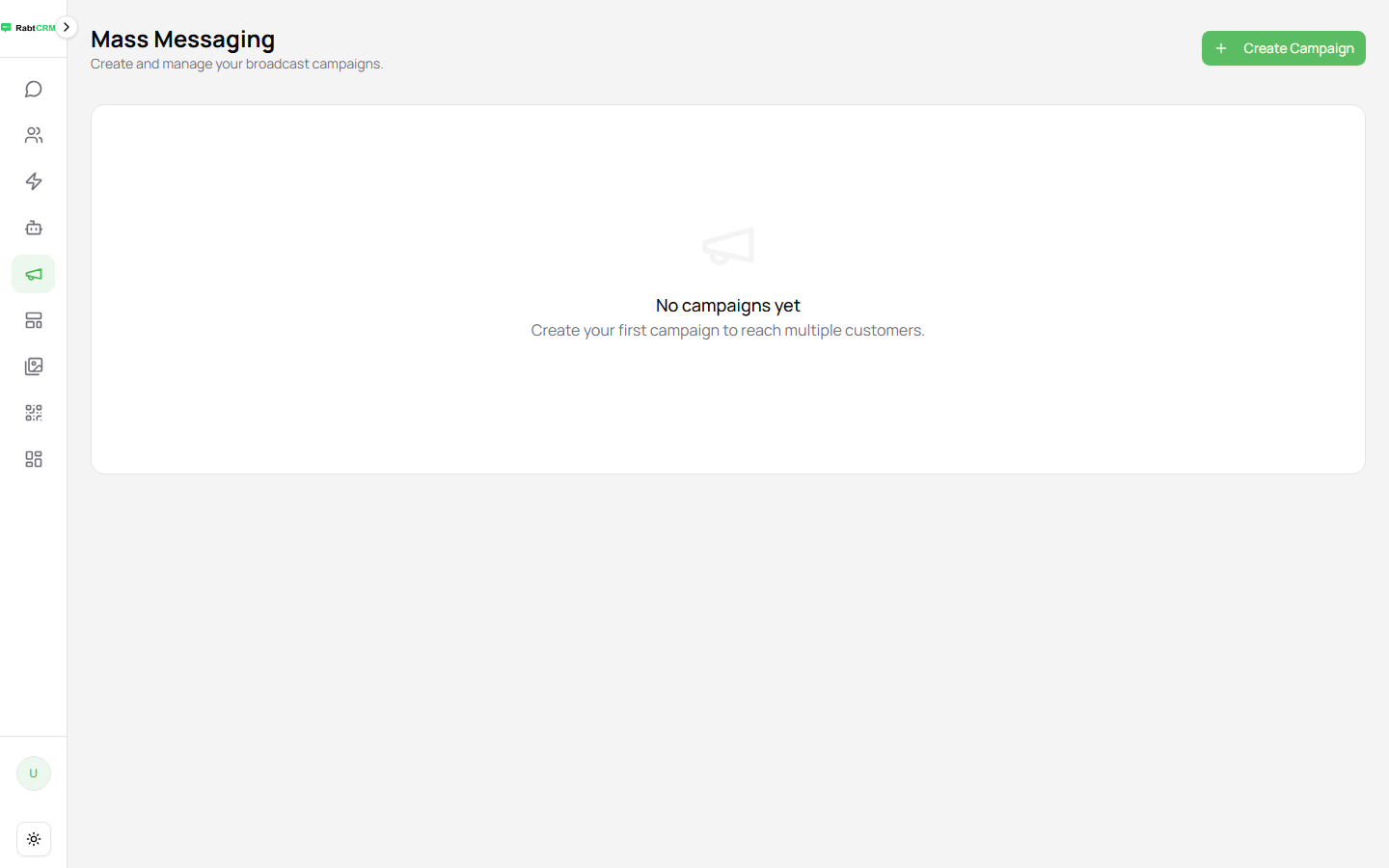
From the left sidebar, open Campaigns, then click Create Campaign.
On the New Campaign screen, fill in:
| Field | Description |
|---|---|
| Campaign Name | An internal name so you can recognise the campaign later |
| Sender Instance (WABA only) | The WhatsApp Business API connection the messages are sent from |
| Schedule (optional) | Send at a specific time. Leave empty to start it manually |
There is also a Create contacts and start conversations option. Enable it if you want a contact and a chat created automatically for every number that receives the message successfully.
Click Next.
Step 2 — Upload Your Recipients
On the Import Leads screen, click Click to upload Excel spreadsheet and choose your file.
Your file must contain a phone column — this is how the system reads the numbers. Any other columns you add become variables you can use in the template.
Don't have a file ready? Click Download Excel template to get a correctly-formatted starter file, fill it in, save it, and upload it.
Once the upload succeeds you'll see a confirmation such as 3 contacts loaded successfully. Click Next.
Step 3 — Choose the Message Template
On the Message Content screen, go to Select Template and click Choose a template.
- Pick the template you want to send
- Confirm it is approved by Meta — a pending or rejected template cannot be sent
- Review the Preview that appears, showing the message exactly as the customer will receive it
- Click Finish & Create
Step 4 — Review and Start Sending
Your new campaign appears on the Campaigns / Mass Messaging page with the status DRAFT.
Check the figures before starting:
| Column | Meaning |
|---|---|
| Total | How many recipients were loaded |
| Sent | How many messages have been sent so far |
| Failed | How many could not be delivered |
When you're satisfied, click Start Now. The platform begins sending to every number in your file, and the counters update as it progresses. When the run finishes, the status changes to COMPLETED.
Deleting a Template Used by a Campaign
A template that is still referenced by a campaign cannot be deleted — you'll get a clear message naming the campaign that still uses it. Delete or reassign the campaign first.
Next Step
Learn how to write templates that get approved the first time.