
CRM & Contacts
Importing Contacts
Add your customer list to RabtCRM in bulk by uploading an Excel (xlsx) file — no manual entry needed.
Step 1 — Open the Contacts Page
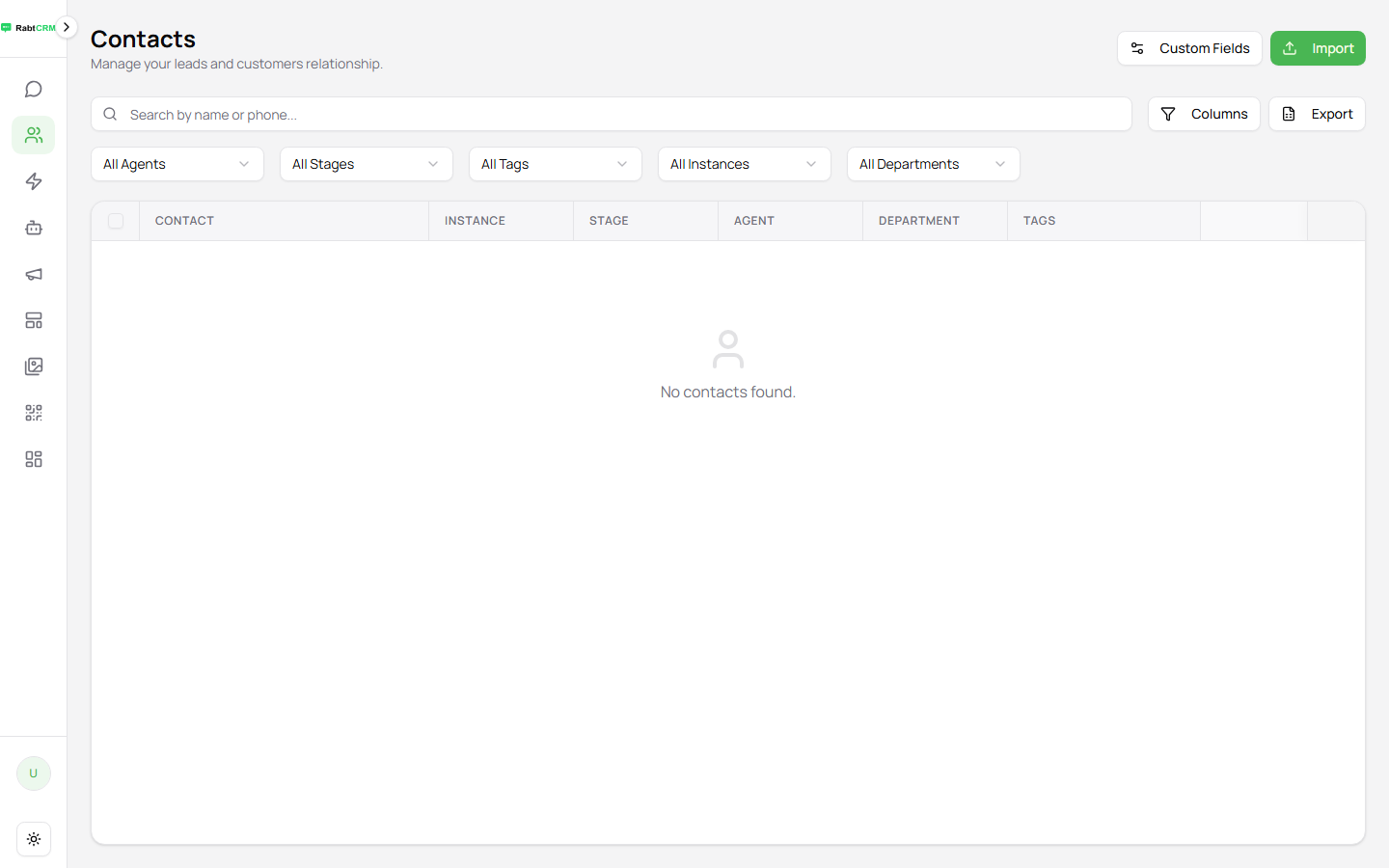
Click Contacts in the left sidebar.
Step 2 — Click Import
Click the Import button at the top of the page.
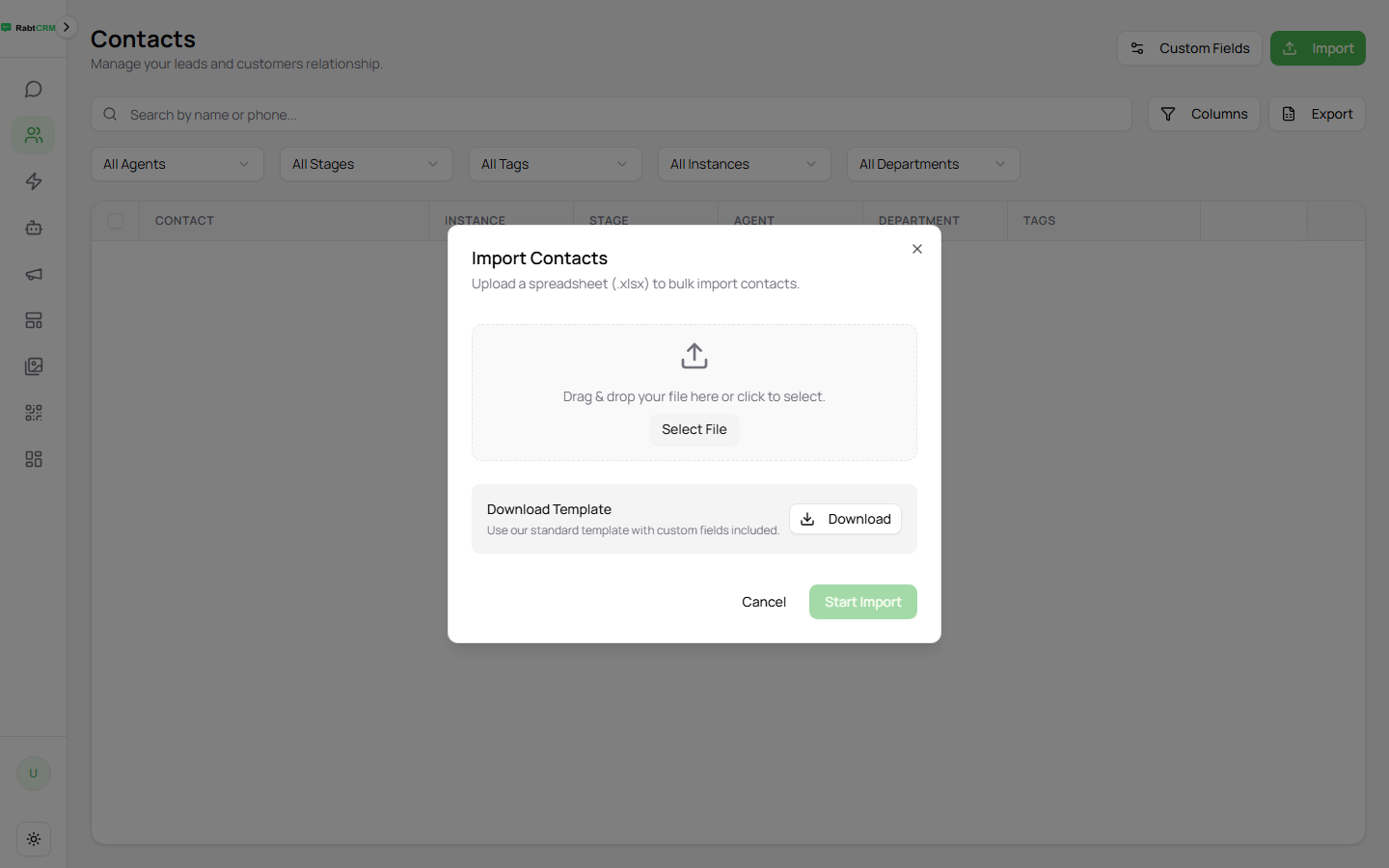
The Import Contacts dialog will open.
Step 3 — Prepare Your Excel File
Before uploading, make sure your xlsx file contains these columns:
| Field | Example | Notes |
|---|---|---|
| name | Ahmed Mohamed | Required |
| phone | 201012345678 | Required — international format, no + |
| [email protected] | Optional | |
| company | Acme Corp | Optional |
Phone number format — no + sign, no spaces:
- Egypt:
201012345678 - Saudi Arabia:
966512345678 - UAE:
971501234567
Step 4 — Upload the File
- In the import dialog, click Choose File and select your xlsx file
- Click Upload
- Click Start Import
Step 5 — Review Import Results
After import, a summary shows:
- Contacts added successfully ✅
- Duplicate records skipped ⚠️
- Records with errors ❌
Handling Duplicates
If a phone number already exists in the platform, you can choose to:
- Skip — keep the existing record unchanged
- Update — overwrite the existing record with data from the file
Adding a Contact Manually
You can also add a single customer directly from the Contacts page without importing.
Custom Fields
Custom fields let you store information specific to your business — a customer number, a preferred branch, a renewal date — alongside the standard contact details.
On the Contacts page click Custom Fields to open the Manage Custom Fields dialog. Click + to add one, give it a name, and choose the data type that fits.
Once created, the field is available on every contact and can be filled in from the contact's own record.
Choosing Which Columns to Show
Click Columns on the Contacts page to open the Toggle Columns list, then switch individual columns on or off — Contact, Instance, Stage, Agent, Department, Tags, and any custom fields you've created.
Hiding columns you don't use makes the table easier to scan; it doesn't delete any data.
Exporting Contacts
Click the Export button on the Contacts page to download the visible contact list as an Excel file.
FAQ
What is the maximum number of contacts per import? This depends on your subscription plan.
What file formats are accepted? Excel files (xlsx) only.