
Getting Started
Account Setup
Welcome to RabtCRM! This guide walks you through signing in, creating an account, and configuring your profile.
Step 1 — Sign In
Go to rabtcrm.com/sign-in.
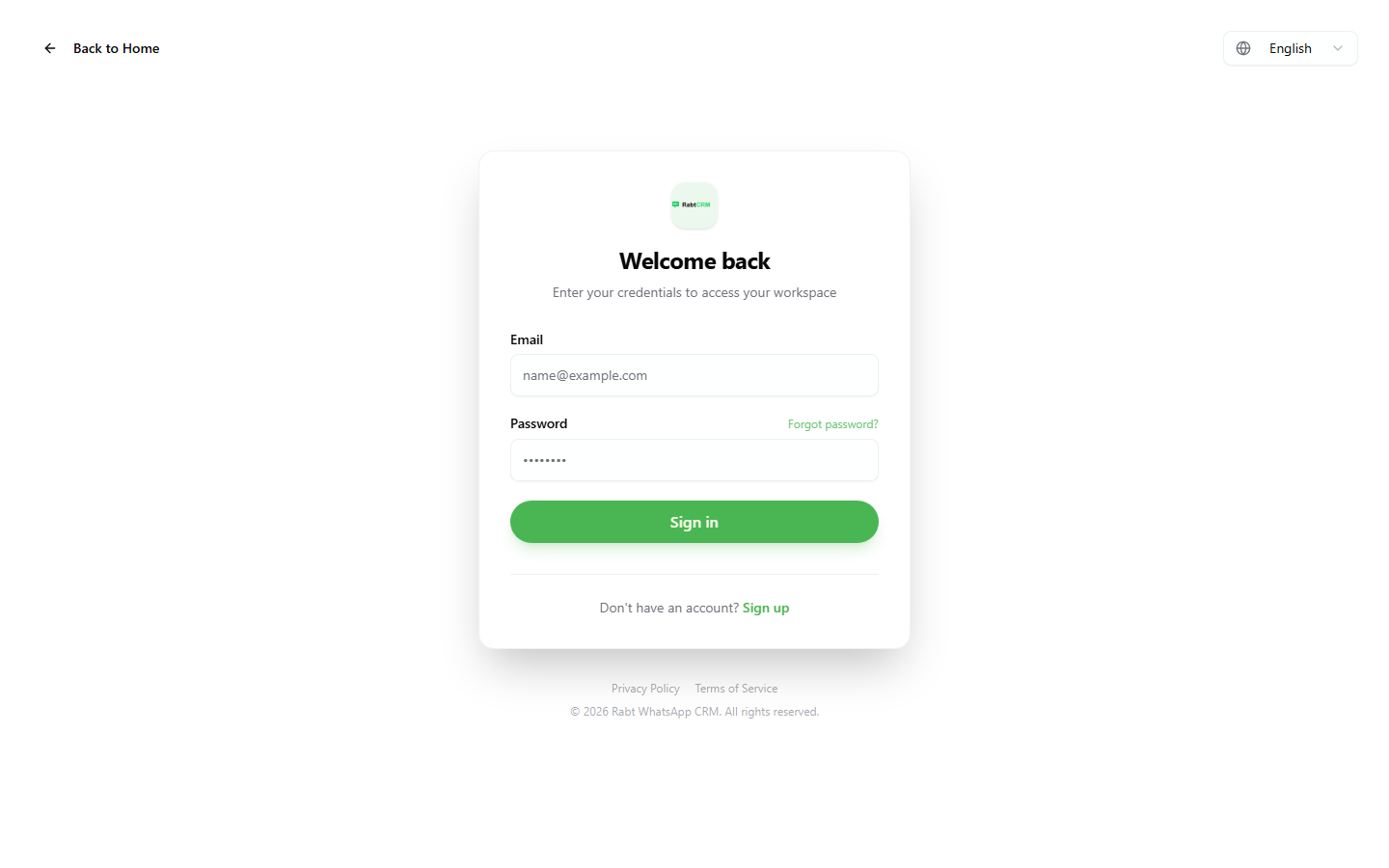
Enter your email and password, then click Sign In.
If you don't have an account yet, click Create a new account below the form.
Step 2 — Create a New Account
If this is your first visit, go to the sign-up page.
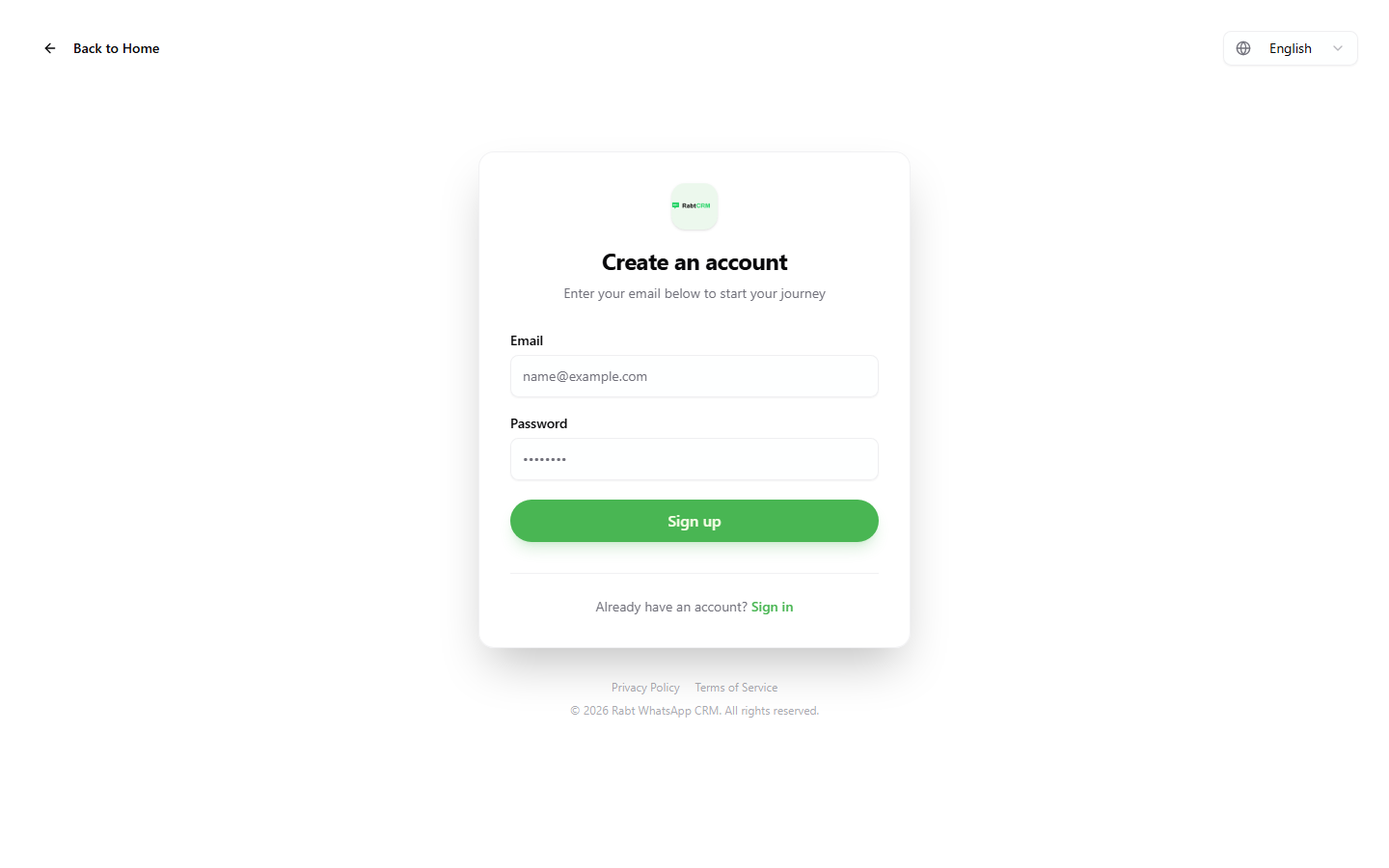
- Enter your full name
- Enter your email address
- Choose a strong password (at least 8 characters)
- Click Create Account
A verification email will be sent — open it and click the activation link to activate your account.
Step 3 — Edit Your Profile
After signing in, go to Settings → General from the left sidebar.
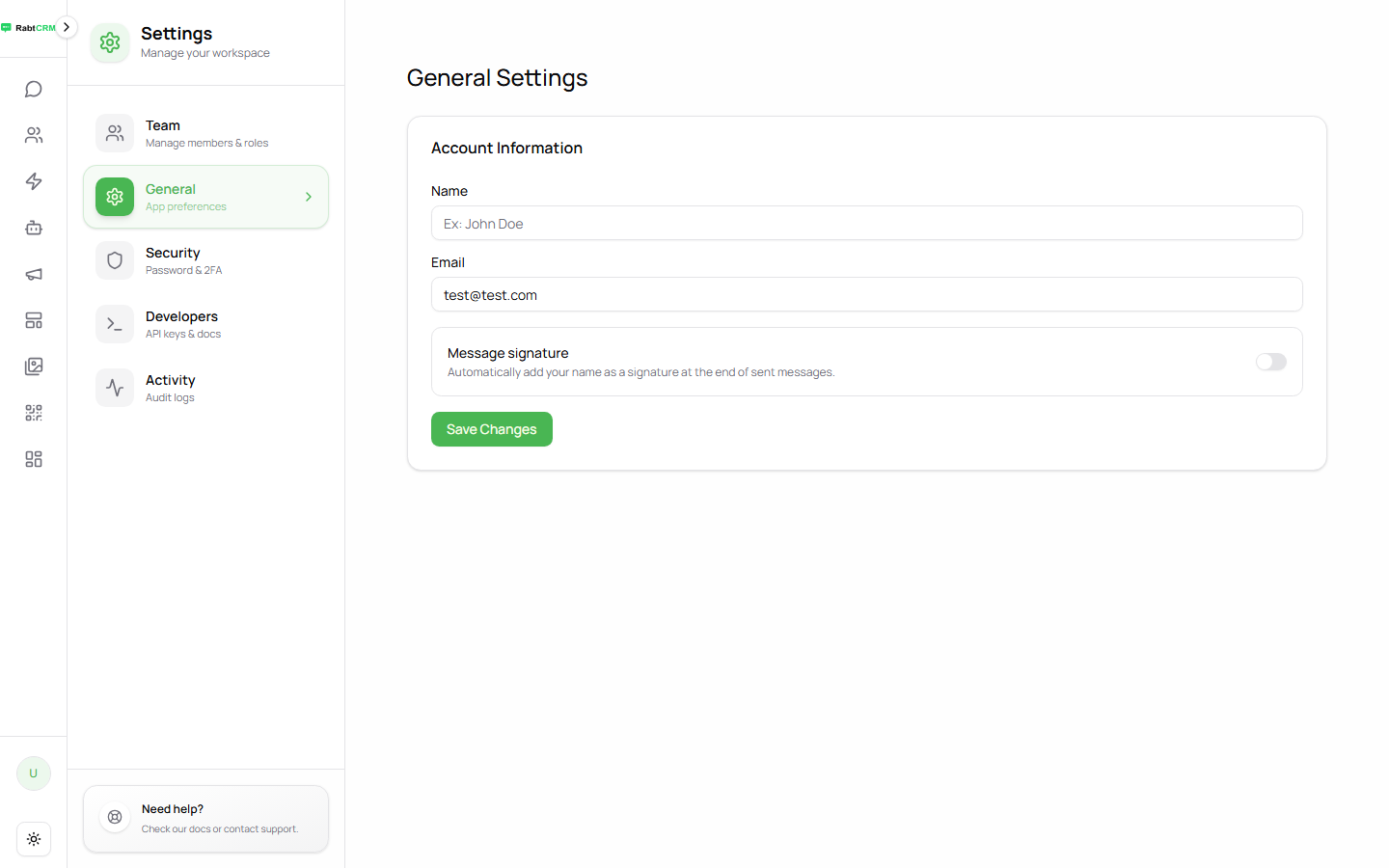
You can update:
| Field | Description |
|---|---|
| Name | Your display name visible to your team |
| Used for login and notifications | |
| Message Signature | Text automatically appended to your messages |
Click Save Changes when done.
Step 4 — Change Your Password
Go to Settings → Security.
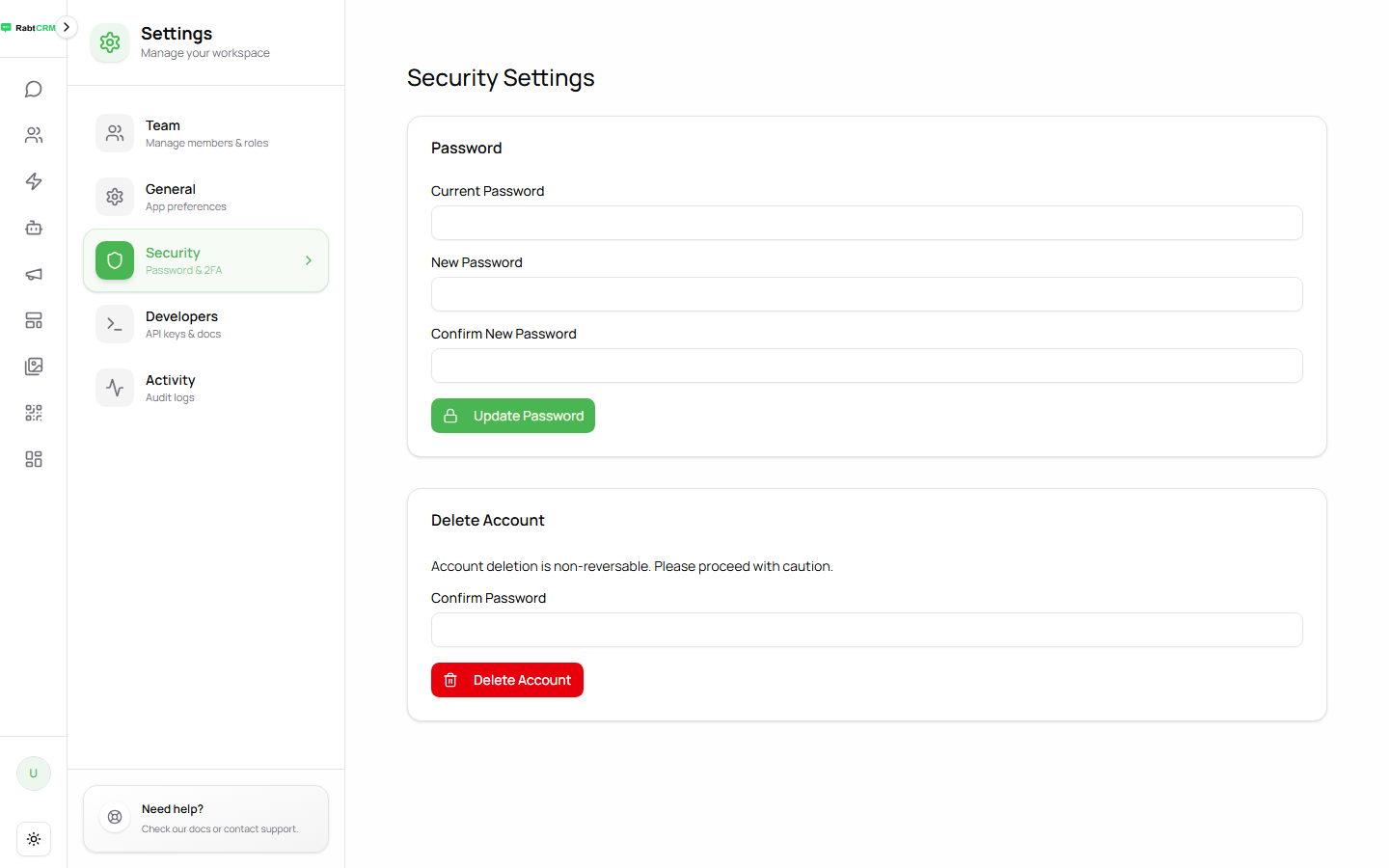
- Enter your current password
- Enter a new password
- Re-enter it in Confirm New Password
- Click Update Password
Security tip: Use a password with uppercase, lowercase, numbers, and symbols.
Step 5 — Account Deletion
From the same Settings → Security page you can also permanently Delete Account.
Warning: Account deletion is irreversible — all data will be permanently removed.
Next Step
Once your account is set up, connect WhatsApp so you can send and receive messages.