
WhatsApp Error: Unable to Access the Account Due to a Permissions Issue
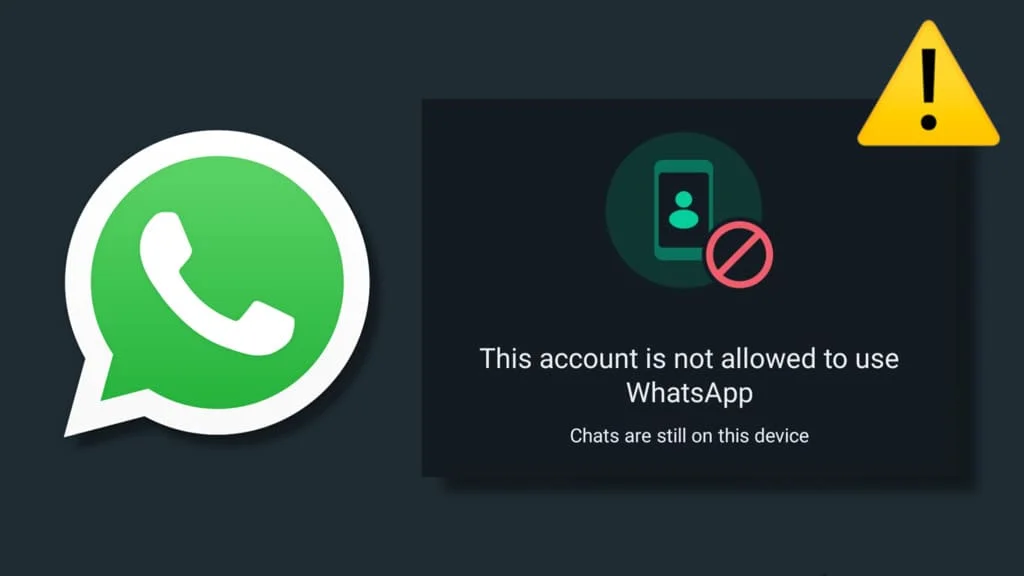
Users of WhatsApp Business API may sometimes encounter an issue that prevents them from performing certain operations or accessing the connected WhatsApp Business account. The following error message may appear:
"Unsupported post request. Object with ID does not exist, cannot be loaded due to missing permissions, or does not support this operation."
This issue usually occurs when WhatsApp Business API cannot access a specific account or resource within Meta's systems. In many cases, the problem is related to permissions or the Facebook connection associated with the account.
What Does the WhatsApp Business API Access Error Mean?
This error means that the WhatsApp Business API connection could not access one of the accounts or resources required to complete the requested operation.
However, the error does not necessarily mean that the account does not exist. The problem may be caused by an expired Facebook login session, changed permissions, revoked access, or the need to reconnect the WhatsApp Business account.
Error Message
"Unsupported post request. Object with ID does not exist, cannot be loaded due to missing permissions, or does not support this operation."
In simple terms, the message means that the system could not access the requested account or resource, or that the current permissions do not allow the requested operation.
Why Does the Account Access Error Occur?
There are several common reasons why this issue may appear when using WhatsApp Business API, including:
1. Expired Facebook Session
Your Facebook login session connected to WhatsApp Business may have expired, causing the integration to lose access to the permissions required to access your Meta account.
2. Changed or Revoked Permissions
If permissions were modified through Meta Business Suite or some required permissions were revoked, the integration may no longer be able to access the WhatsApp Business account or perform certain operations.
3. WhatsApp Business Connection Needs to Be Reauthorized
In some cases, the WhatsApp Business connection needs to be reauthorized so the system can regain access to Meta services and the resources associated with the account.
4. Changes to the Account Administrator's Permissions
The issue may also occur after changes are made to the permissions of the user managing the account, particularly if the user no longer has administrator or Full Control access to the assets associated with the Meta account.
How to Fix the WhatsApp Account Access Error
If you encounter this issue, try the following steps to reconnect your WhatsApp Business account and restore the required permissions.
Step 1: Reauthorize the Connection with Facebook
Go to Settings, then select Channels, followed by WhatsApp.
Click Reauthorize.
Select Continue with Facebook.
Log in using a Facebook account that has administrator or Full Control access.
Grant all the requested permissions during the reauthorization process.
After completing the reauthorization process, try using the WhatsApp connection again to check whether the issue has been resolved.
Step 2: Enable All WhatsApp Business Accounts
If the issue persists after reauthorization, you may need to make sure that the required WhatsApp Business accounts are enabled in Facebook Business Tools settings.
Go to Facebook Business Tools settings.
Find the WhatsApp Business section.
Select all the WhatsApp Business accounts you want to enable.
Save the changes.
Return to your WhatsApp settings and try the Reauthorize process again.
These steps may help restore the required permissions and reconnect the WhatsApp Business account.
Tips to Prevent Permission Issues
You can reduce the likelihood of experiencing this problem again by following a few simple practices:
Use a dedicated administrator account: It is recommended to use a dedicated admin account to manage your WhatsApp Business API integration.
Avoid sharing login credentials: Do not share the administrator account's login credentials with team members.
Keep your Facebook session active: Make sure the Facebook account connected to the integration remains active and accessible.
Review Meta permissions regularly: Make sure the administrator still has the permissions required to manage the WhatsApp Business account.
Conclusion
The WhatsApp account access error caused by a permissions issue occurs when WhatsApp Business API cannot access a required account or resource within Meta's systems.
The problem is often related to an expired Facebook session, changed permissions, loss of administrator access, or the need to reauthorize the WhatsApp Business connection.
Start by reauthorizing the connection using an account with administrator or Full Control access. Then, make sure the required WhatsApp Business accounts are enabled. If the issue continues, review the account permissions and Meta Business settings associated with the integration.
Using a dedicated administrator account and keeping permissions up to date can also help reduce connection and access issues when managing WhatsApp Business API.
Read next
WhatsApp Error 131026: Message Undeliverable – Complete Troubleshooting Guide
Learn the causes of WhatsApp Error 131026, how to diagnose message delivery failures, fix them, and prevent them.
Read article
WhatsApp Account Blocked? How to Restore Access to Your Blocked Account
Learn why WhatsApp accounts get blocked, how to restore access, and how to prevent future blocks.
Read article
WhatsApp Coexistence Limitations: What You Need to Know
A practical guide to WhatsApp Coexistence, its key limitations, the 14-day connection rule, chat history restrictions, and how Rabt CRM helps businesses manage WhatsApp conversations alongside the WhatsApp Business App.
Read article